Installing CAD Scan
Installing CAD Scan
Note
You must first install License Manager, go to Installing License Manager article.
Note
CAD Scan requires MicroStation 2024 to be installed first. If you already installed CAD Scan before MicroStation, please run the CAD Scan setup again after installing MicroStation
Step 1: Download CAD Scan Setup
Download CAD Scan setup program from here: CAD Scan Setup
Step 2: Install CAD Scan
Double click on the downloaded 'CAD Scan - Setup.msi' install package.
Note
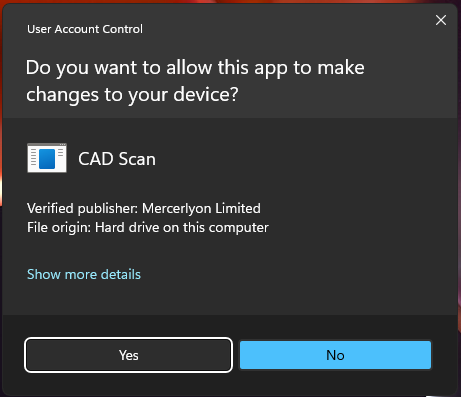
CAD Scan requires elevated privileges as it adds a small config file to MicroStation, please run the setup program as the user who wants use CAD Scan and if the user doesn't have admin privileges ask an administrator to type their username and password at the User Account Control step below.
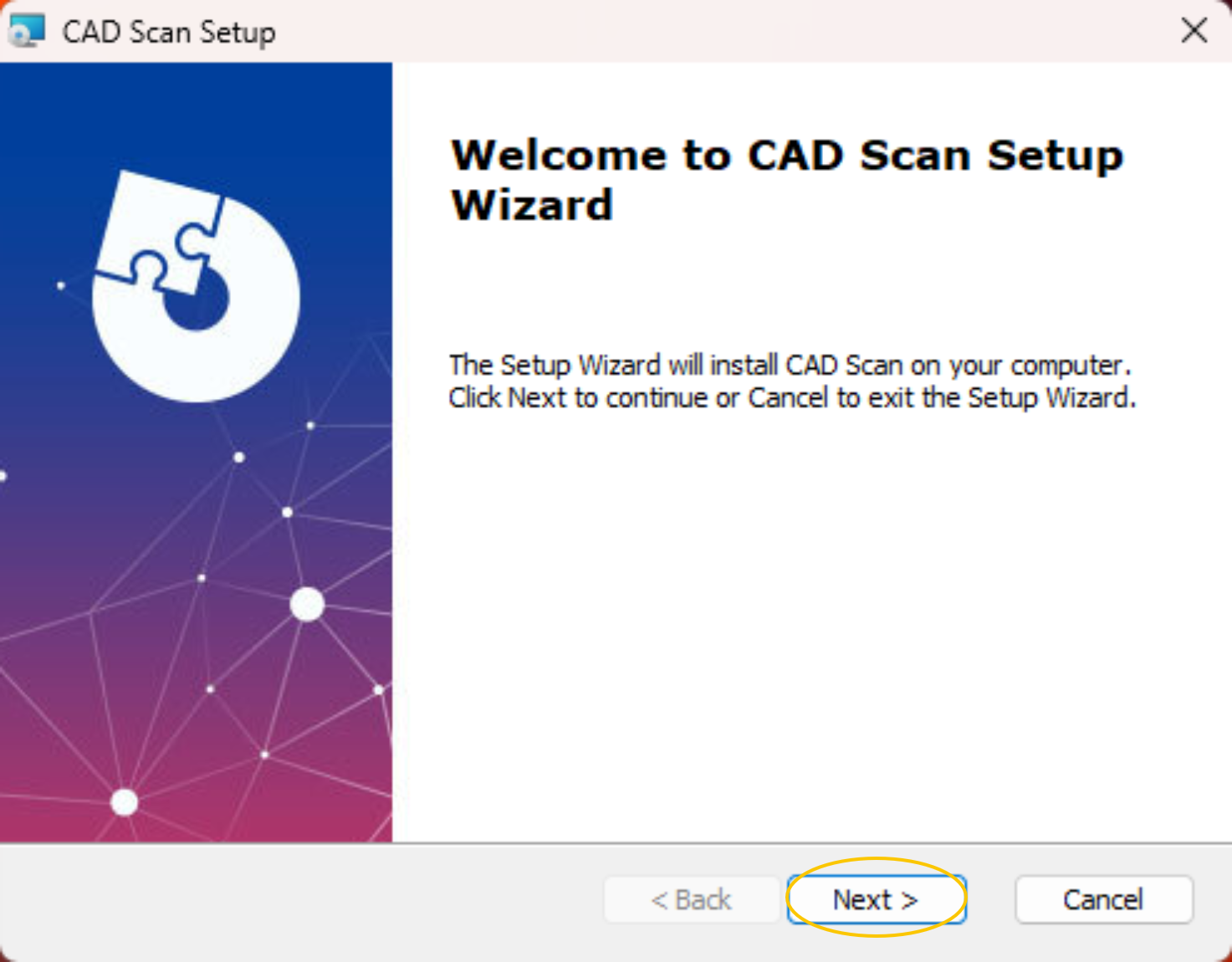
Click 'Next'
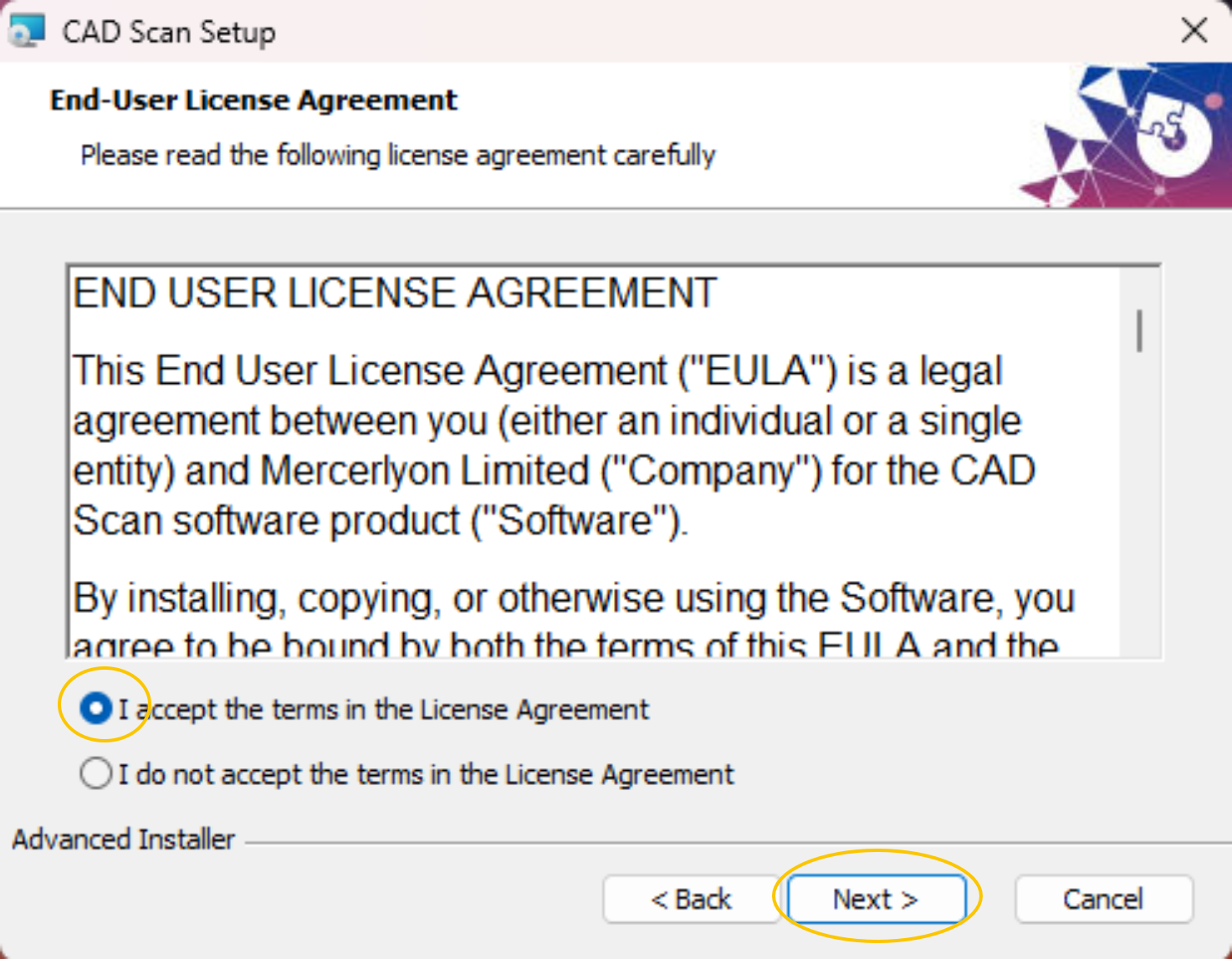
Read the EULA and select 'I accept the terms in the License Agreement', and click 'Next'
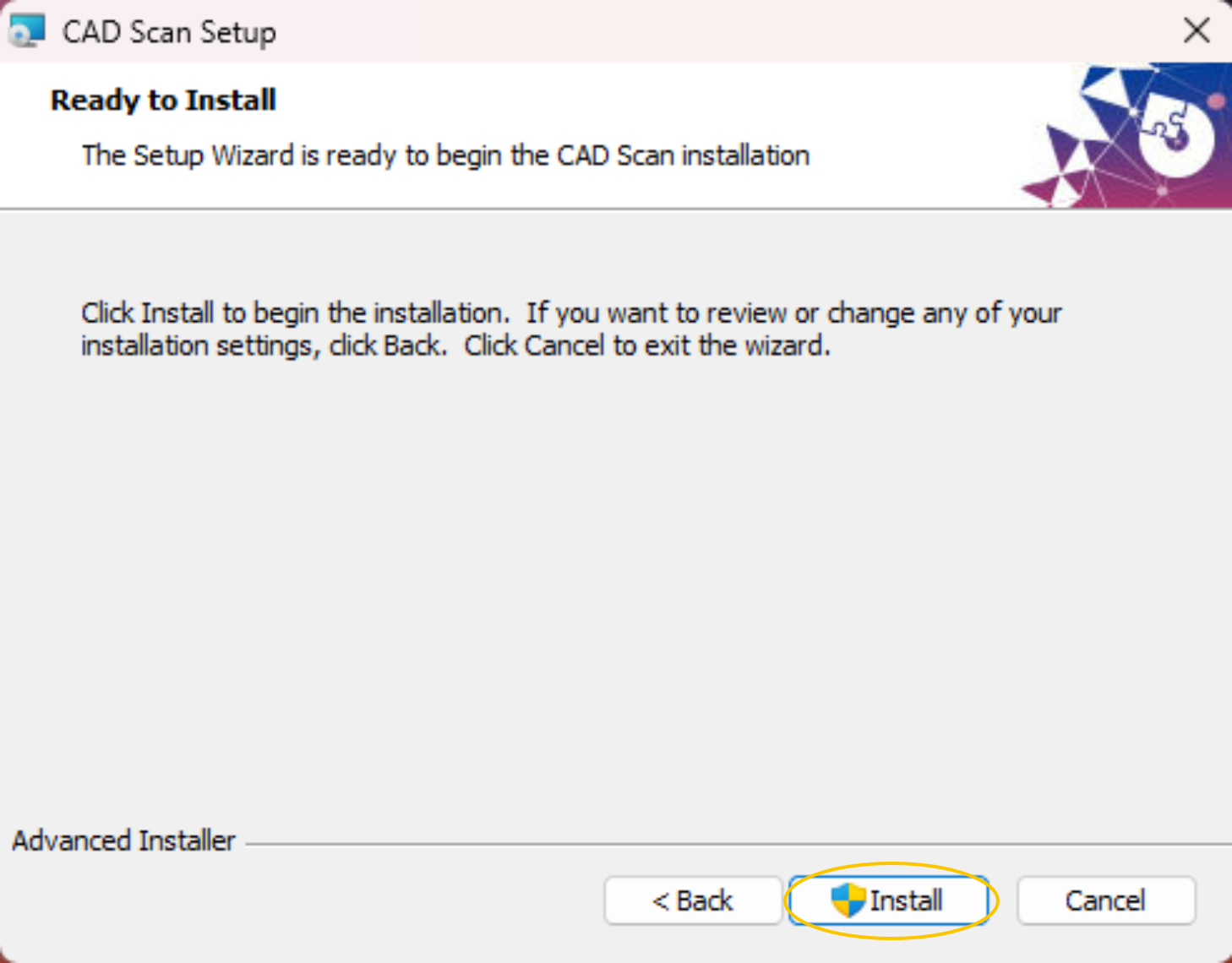
Click 'Install'
Click 'Yes' in the elevated User Access Control window. If you are prompted for a username and password, please ask your administrator to login.
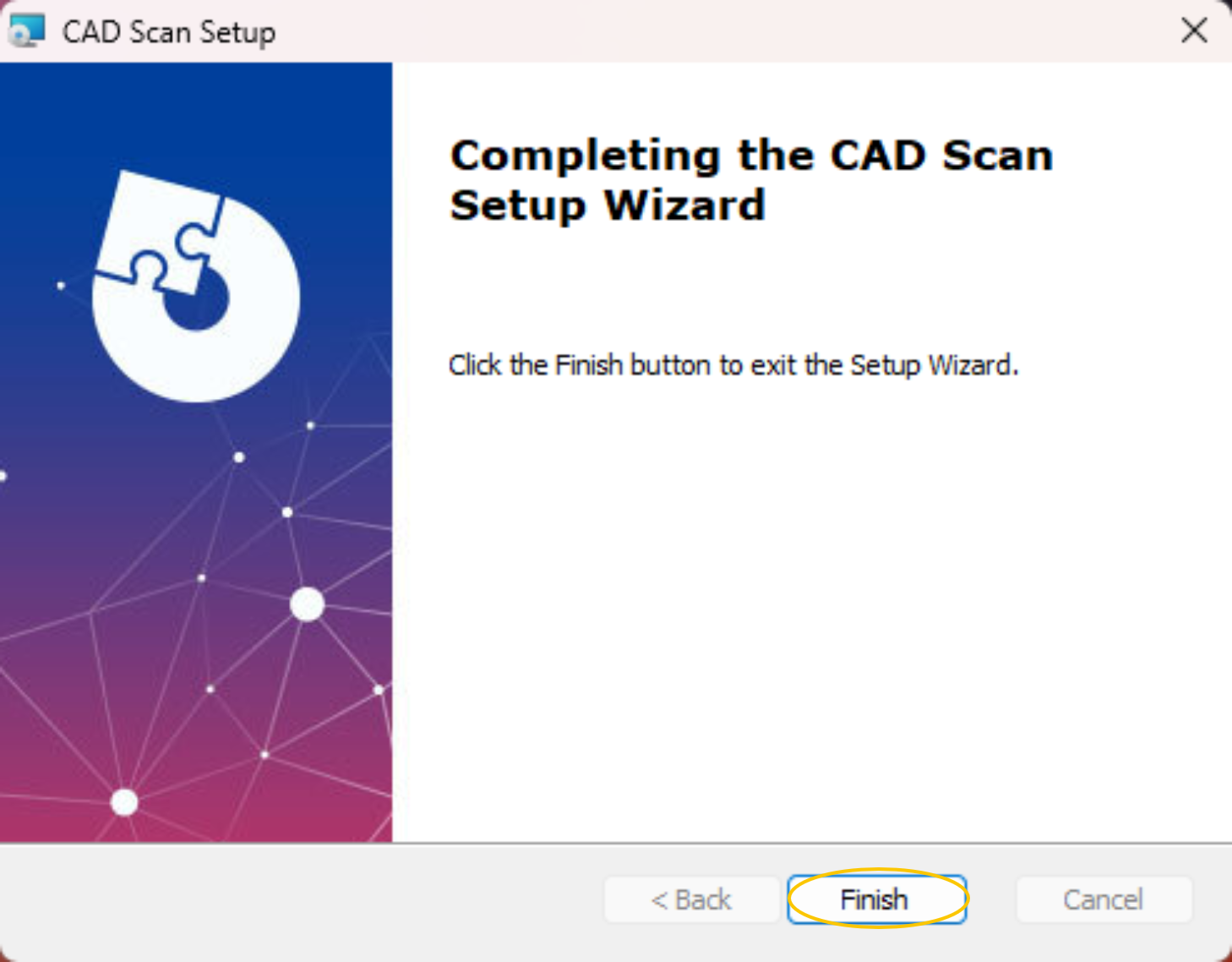
Then click 'Finish'
Note
Next Step: Running CAD Scan For The First Time