Generating a Single File Report
Generating a Single File Report
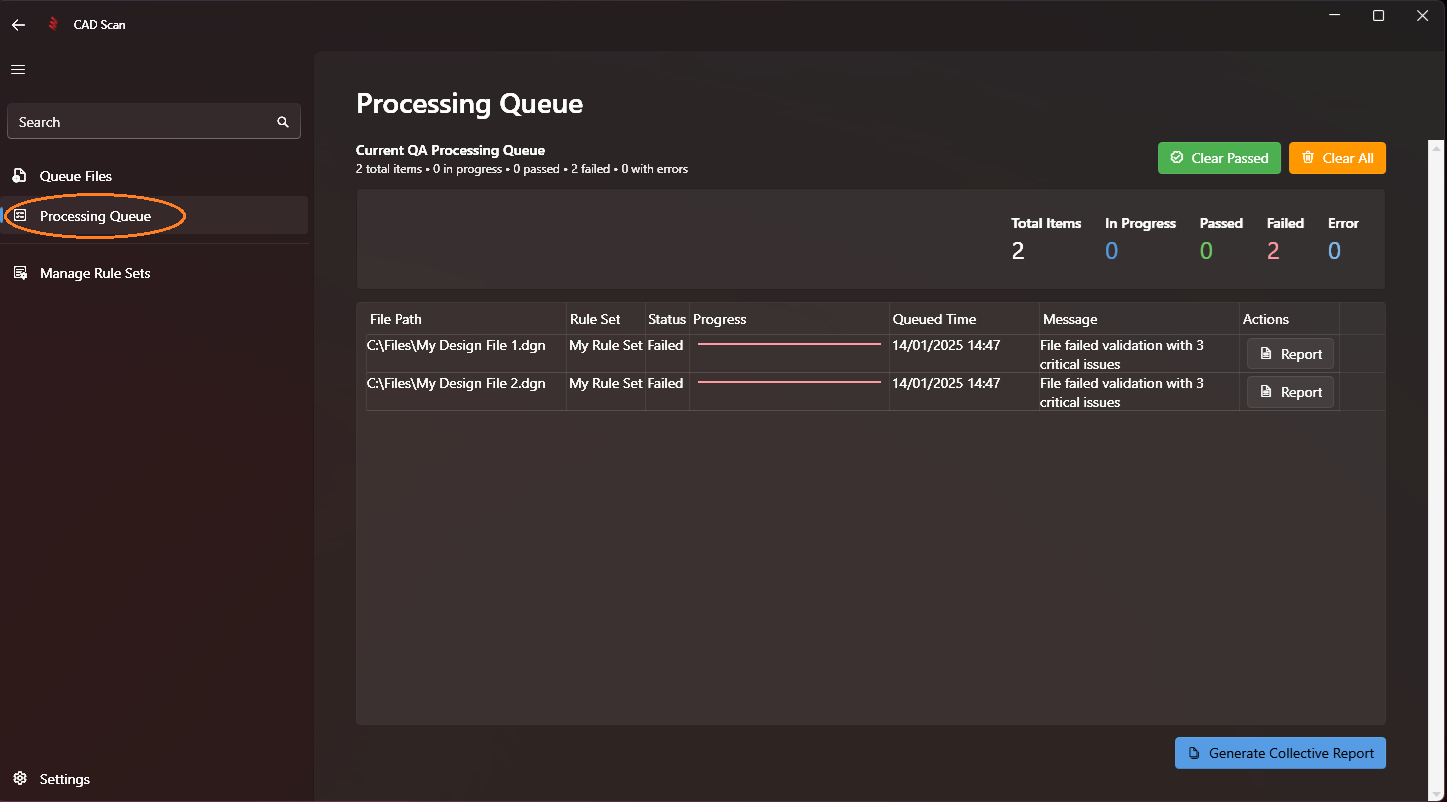
Step 1: Open the Processing Queue
Open the processing queue by clicking the 'Processing Queue' button in the left navigation menu.
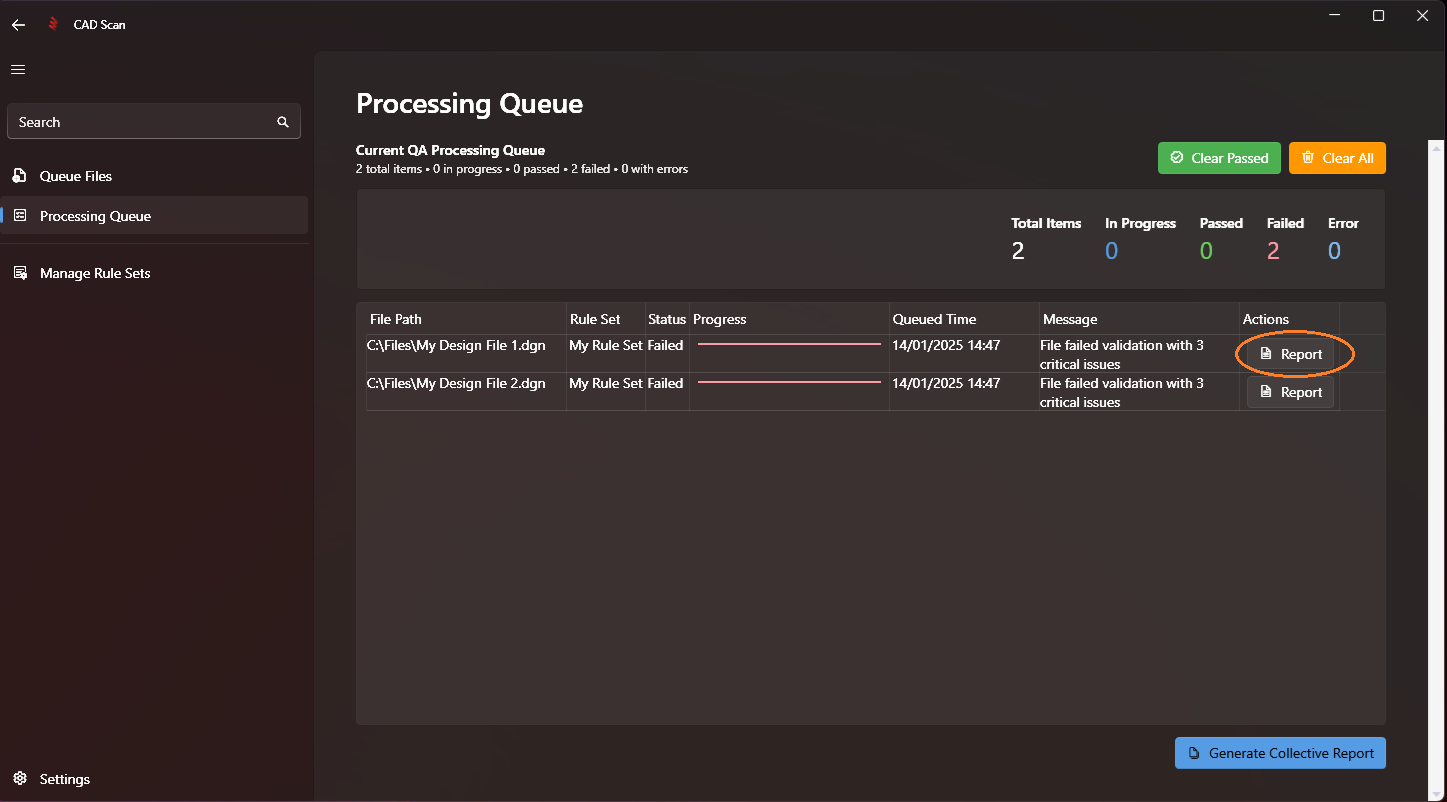
Step 2: Click the Report button
Click the 'Report' button to the right of an individual checked file. If a file has not finished processing the button will be disabled.
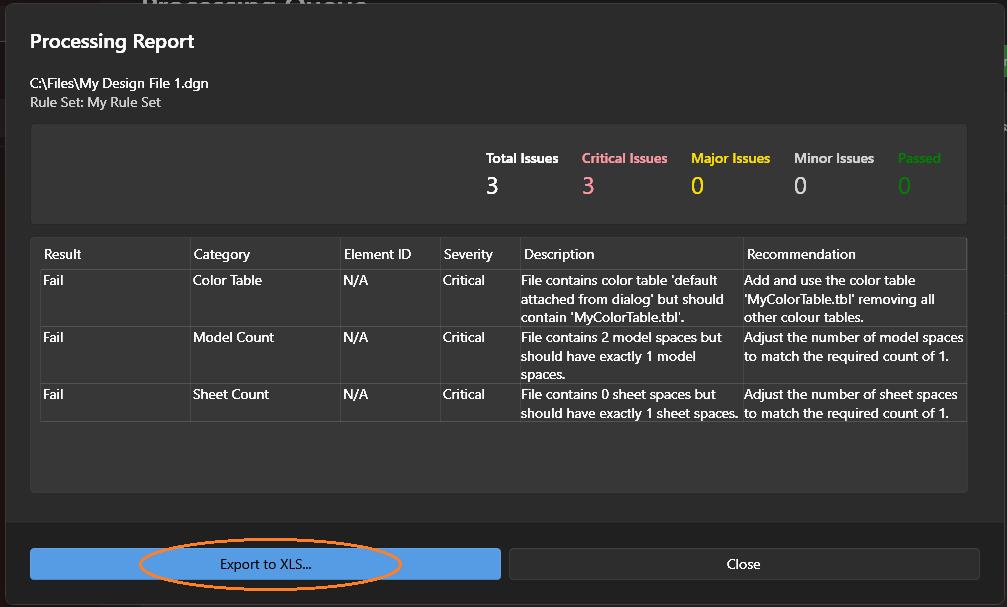
The single file processing report will be displayed showing all failures and passes, giving explanations and recommendations. Reports can be exported to Microsoft Excel format buy clicking on the 'Export to XLS...' button. This will open a save file dialog where you can save your exported XLS file.
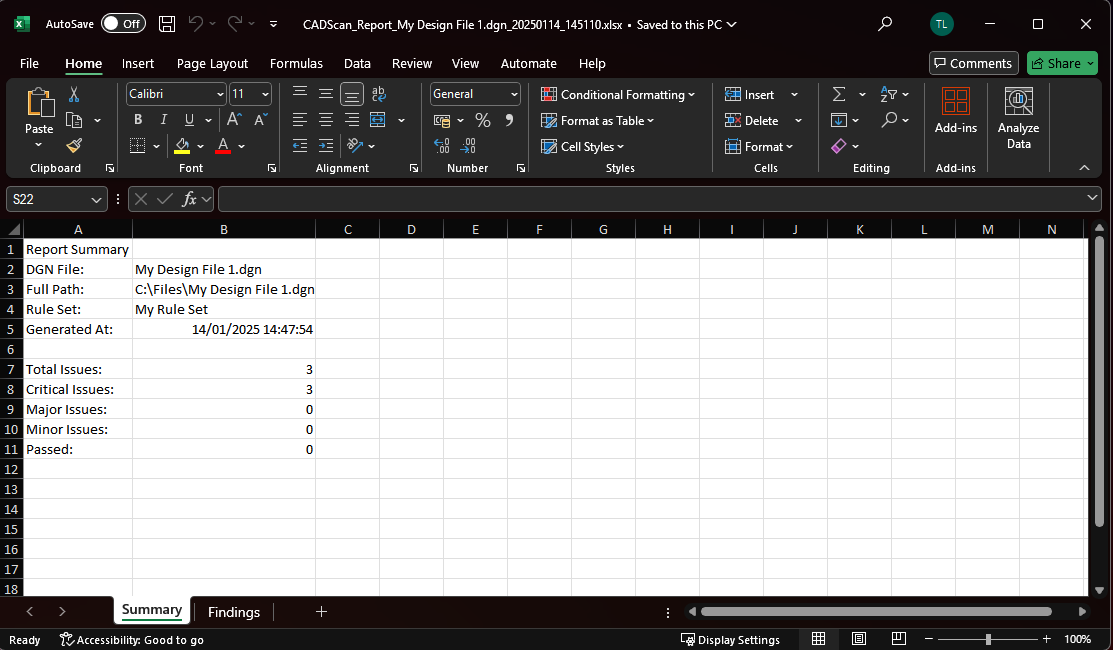
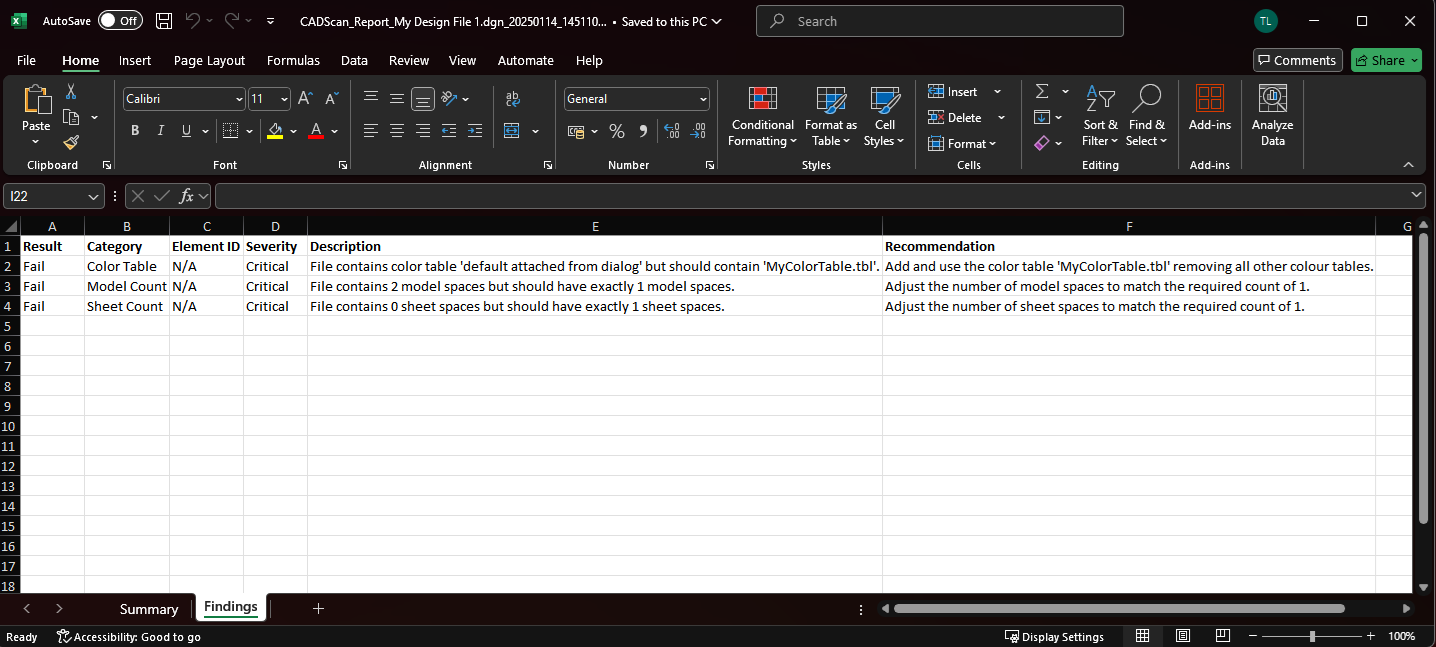
The excel report has two sheets:
The 'Summary'
The 'Findings':
Note
Next Step: Generating a Collective Report