Adding Rules
Adding Rules
Step 1: Select your Rule Set
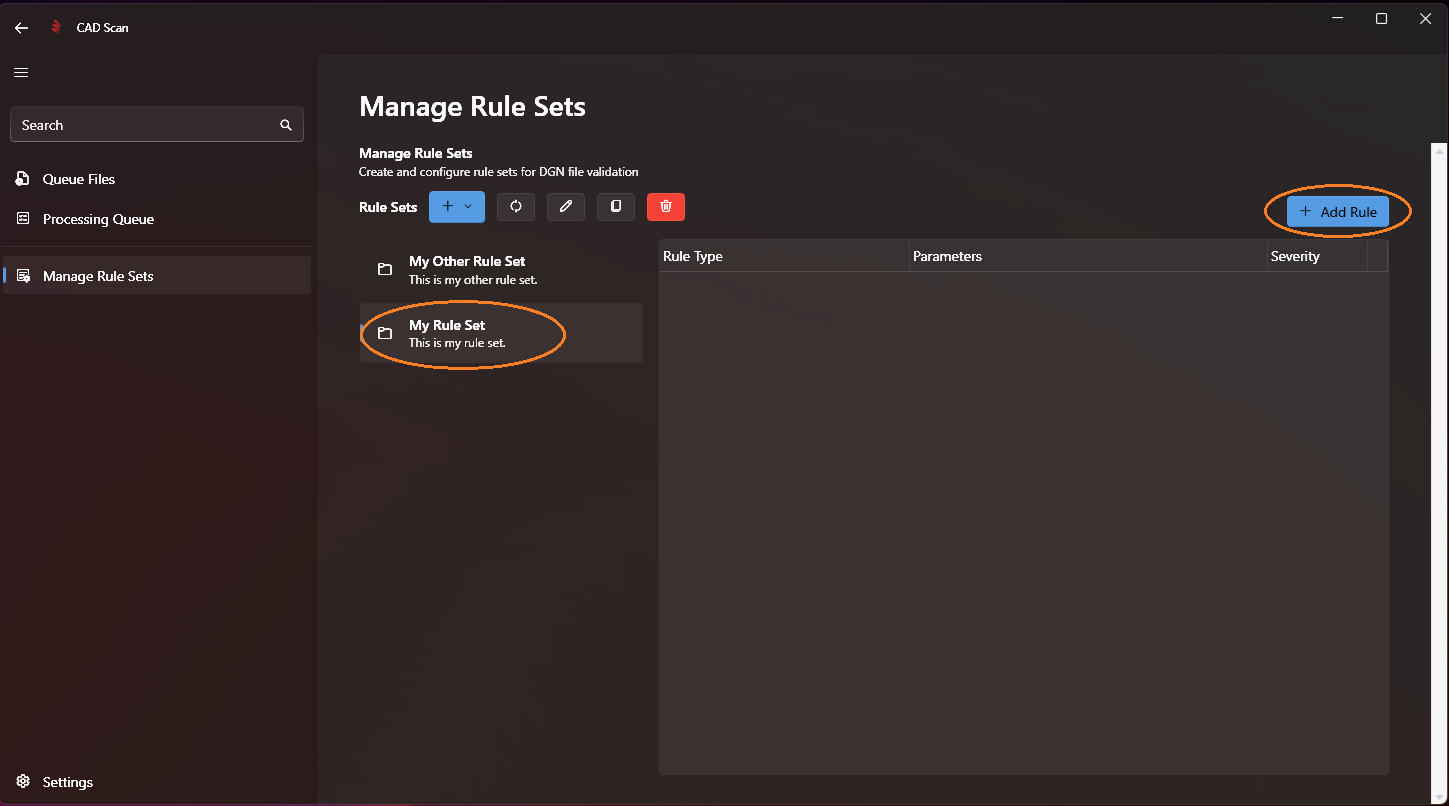
Click the Rule Set you want to add a rule to in the rule set list, then click on '+ Add Rule' in the top right of the screen.
Step 2: Configure the Rule
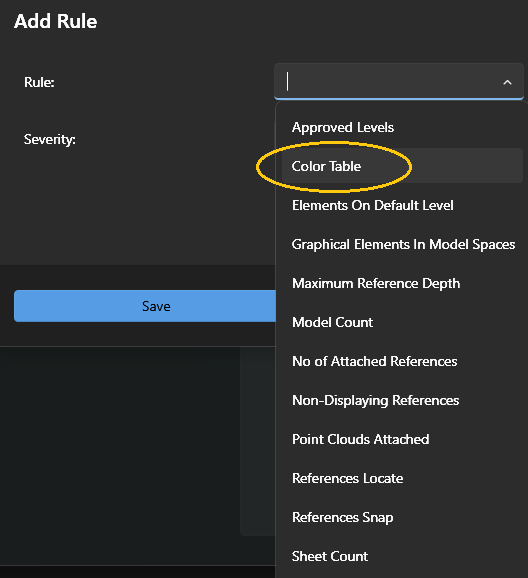
Choose a Rule from the dop down menu, in this example we'll choose 'Color Table':
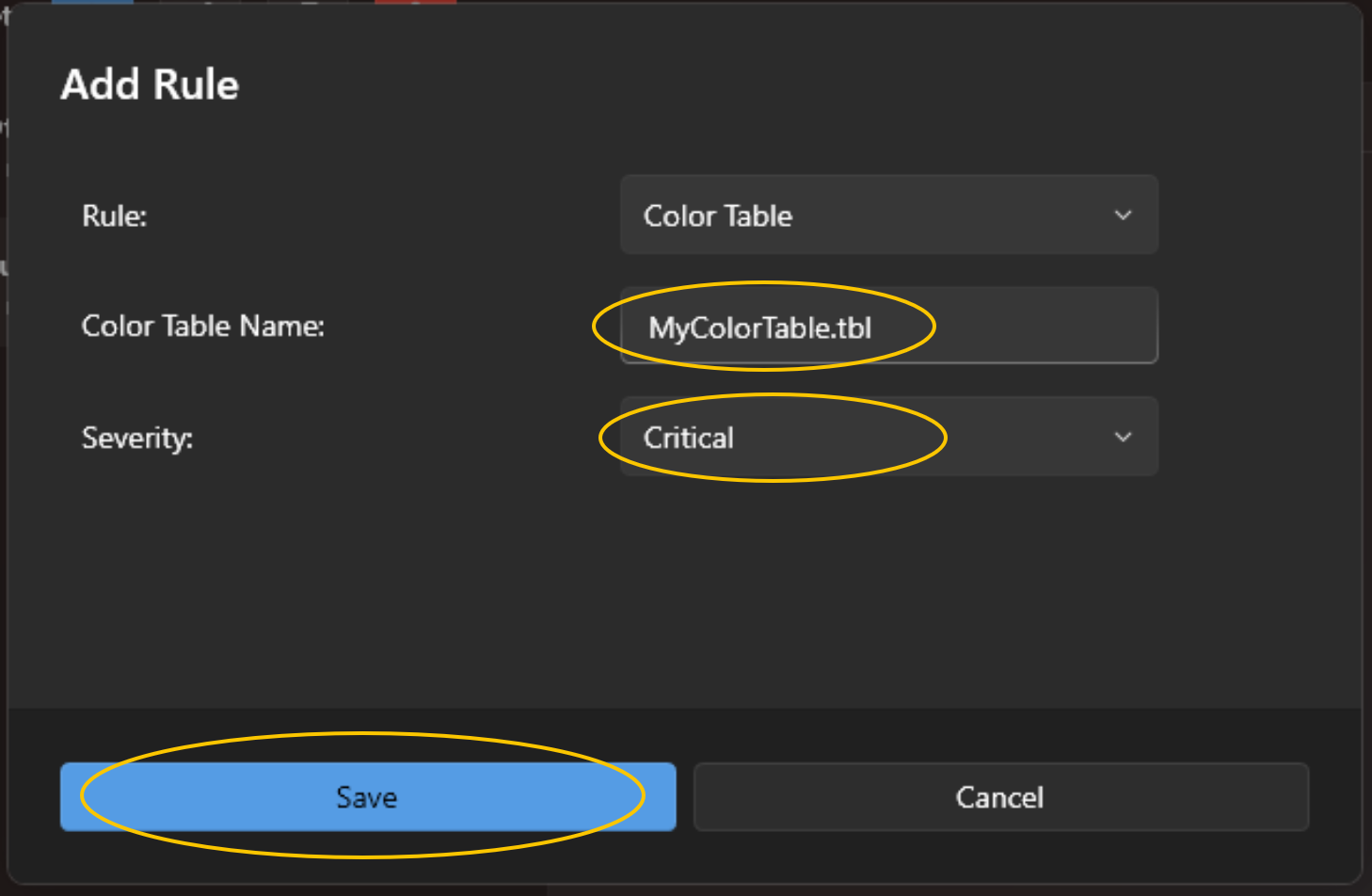
The parameters for each rule are automatically displayed for your input. In the case of 'Color Table' rule the parameter is 'Color Table Name', and here we type the name of the Color Table file we want to check for.
Each rule has a severity, this categorises how important the rule is and is displayed upon failure in any reports.
Click 'Save' to add the Rule to your Rule Set.
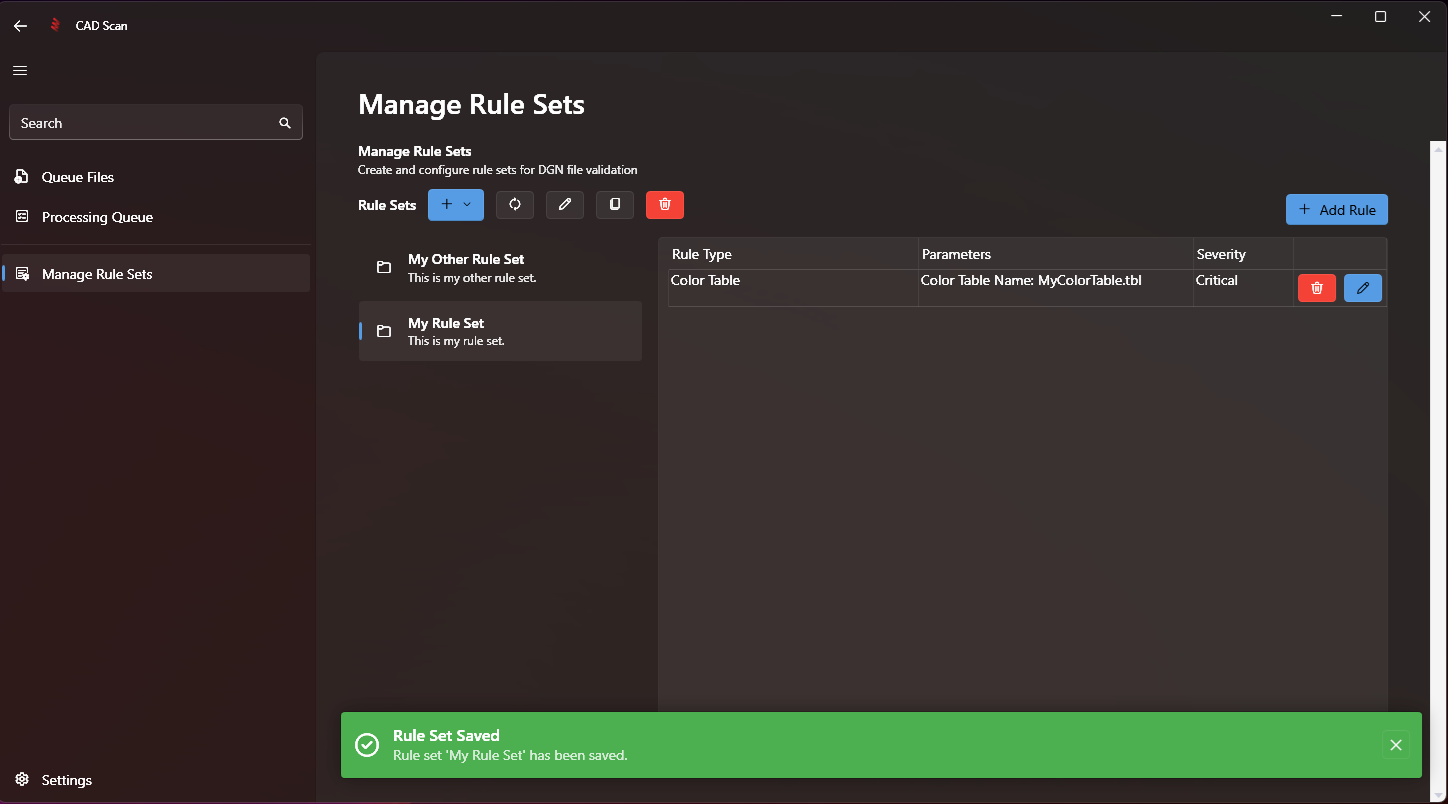
A green pop-up is displayed confirming the Rule Set is saved and as you can see our new Rule is added to the list of rules in our Rule Set on the right underneath our +Add Rule button.
Note
List of All Available Rules
Note
Next Step: Copying a Rule Set